Blender CLI Integration Guide
Control Blender with terminal-based AI tools like Claude Code, Codex CLI, and Gemini CLI. Natural language control via HTTP API without MCP.
About This Page
This guide explains how to control Blender from terminal-based AI CLIs (Claude Code, Codex CLI, Gemini CLI, ChatGPT, etc.). Uses HTTP API instead of MCP.
For MCP-based setup (Claude Desktop, VS Code, Cursor), see the Setup Guide instead.
Requirements
- Node.js 18.0+ (If not installed, download from nodejs.org )
- Claude Code / Codex CLI / Gemini CLI / ChatGPT
- Synaptic AI Pro for Blender (installed)
Install CLI Tools
Install your preferred CLI tool.
Claude Code
AnthropicAnthropic's official CLI agent. Powerful coding assistance.
npm install -g @anthropic-ai/claude-codeCodex CLI
OpenAIOpenAI's terminal agent. Powered by GPT-4.
npm install -g @openai/codexGemini CLI
GoogleGoogle's Gemini AI in your terminal.
npm install -g @anthropic-ai/gemini-cliChatGPT
OpenAIAlso works with ChatGPT web or app.
Just copy and paste the prompt
How to Use (Visual Guide)
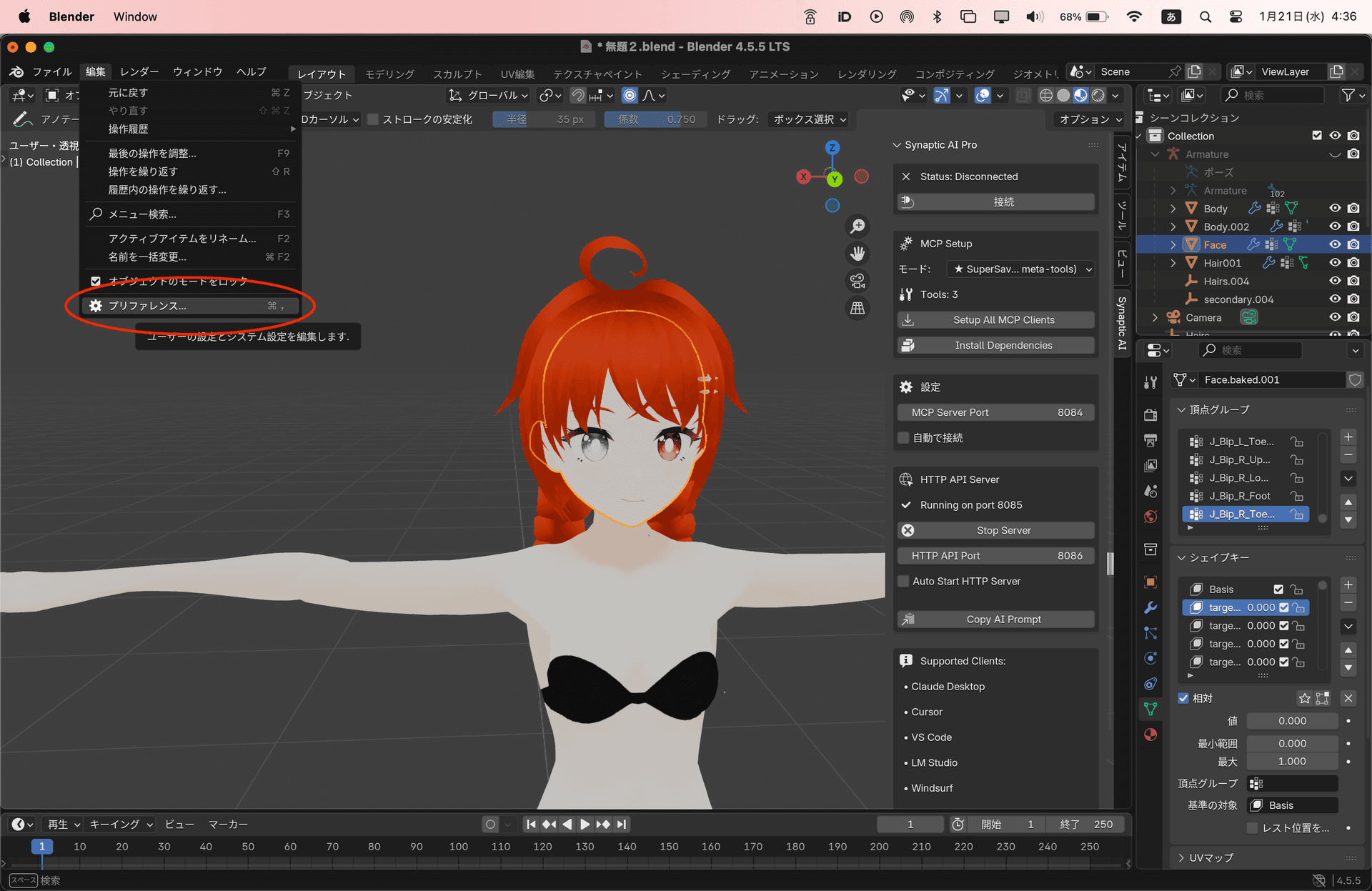
Open Preferences
In Blender, go to Edit → Preferences
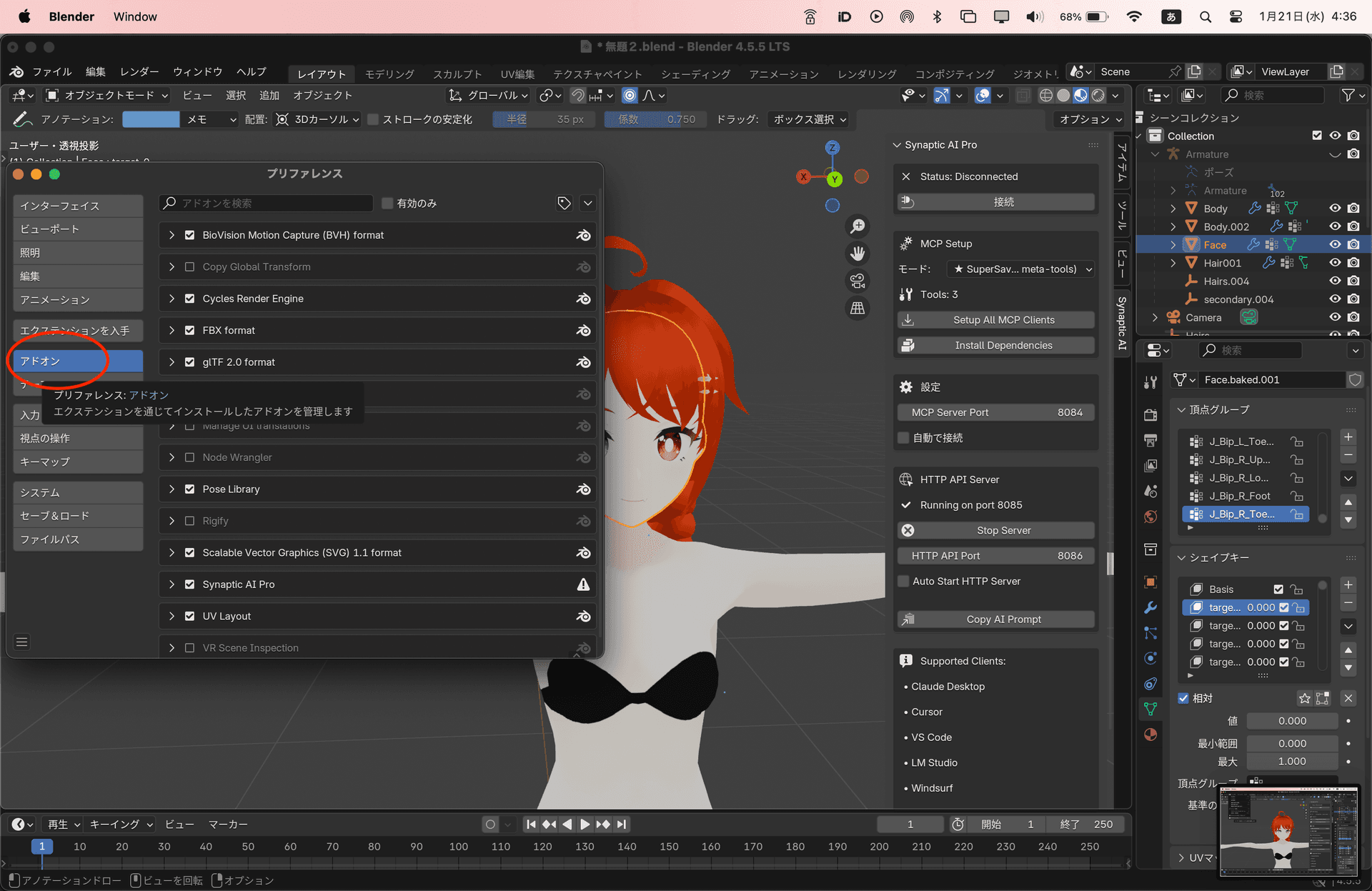
Select Add-ons
Click Add-ons in the left sidebar
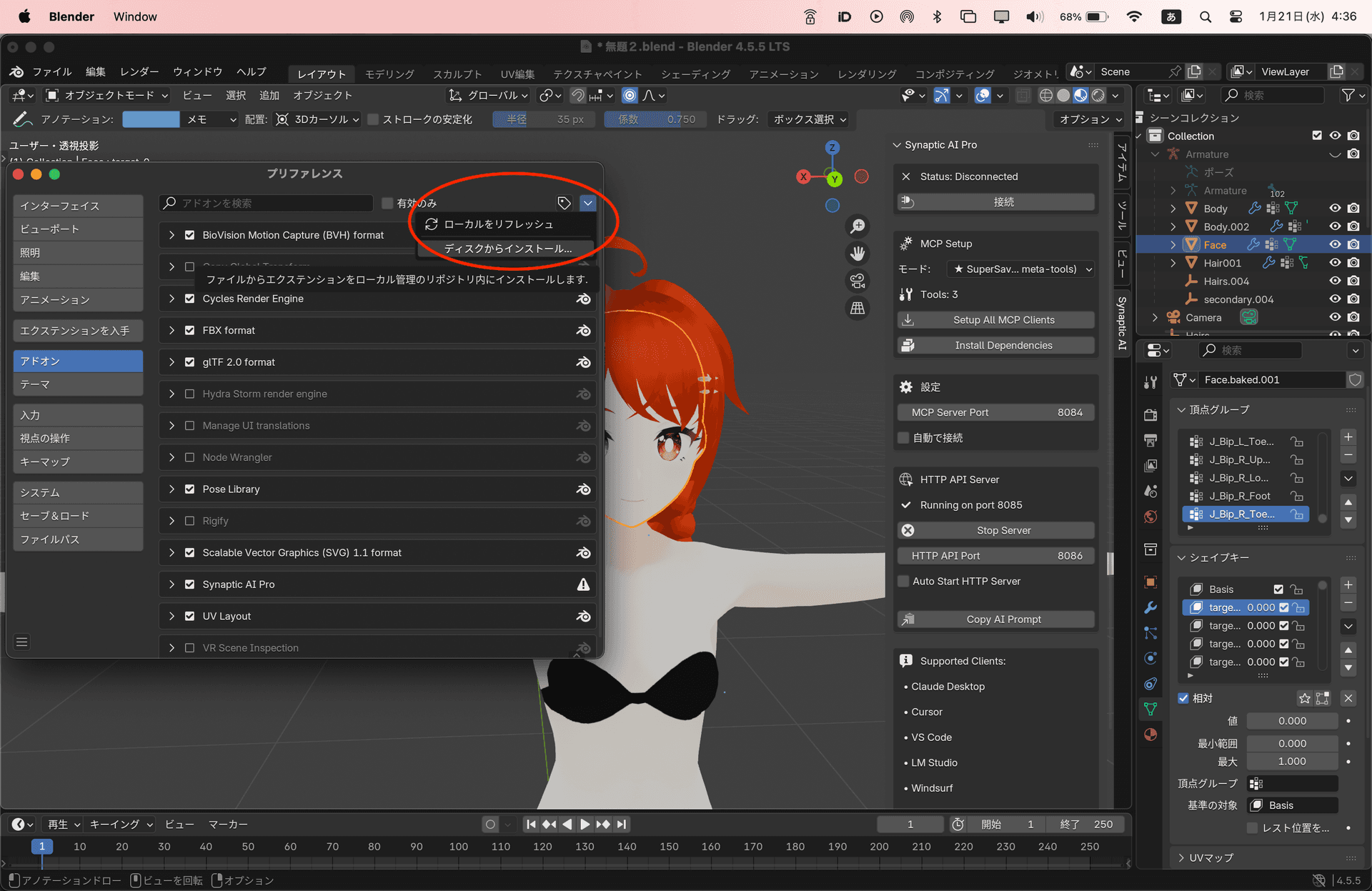
Install from Disk
Click the dropdown in the top right, select 'Install from Disk', and choose the downloaded zip file
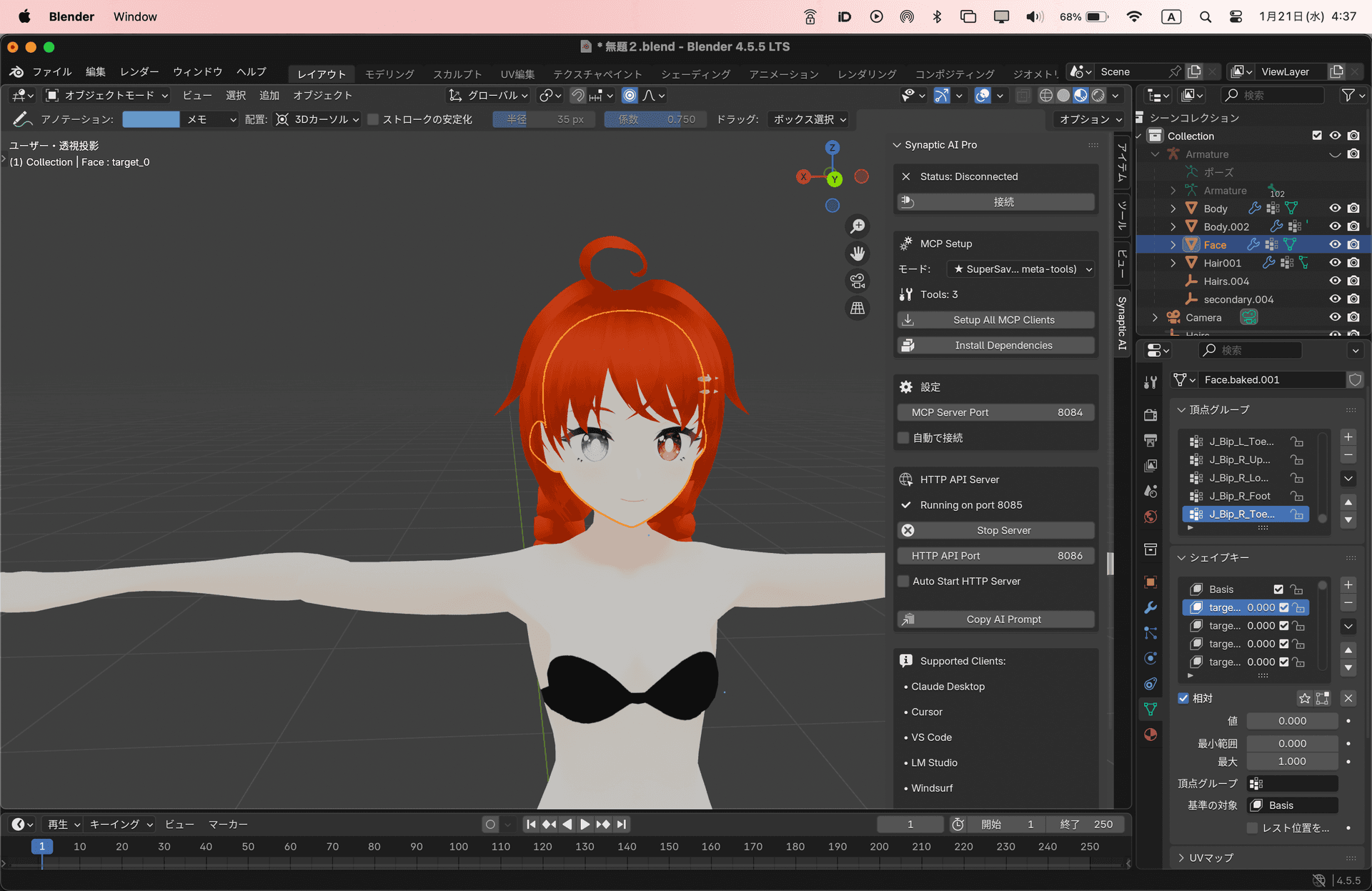
Open Side Panel
In the 3D viewport, press N key to show the side panel and select the Synaptic AI tab
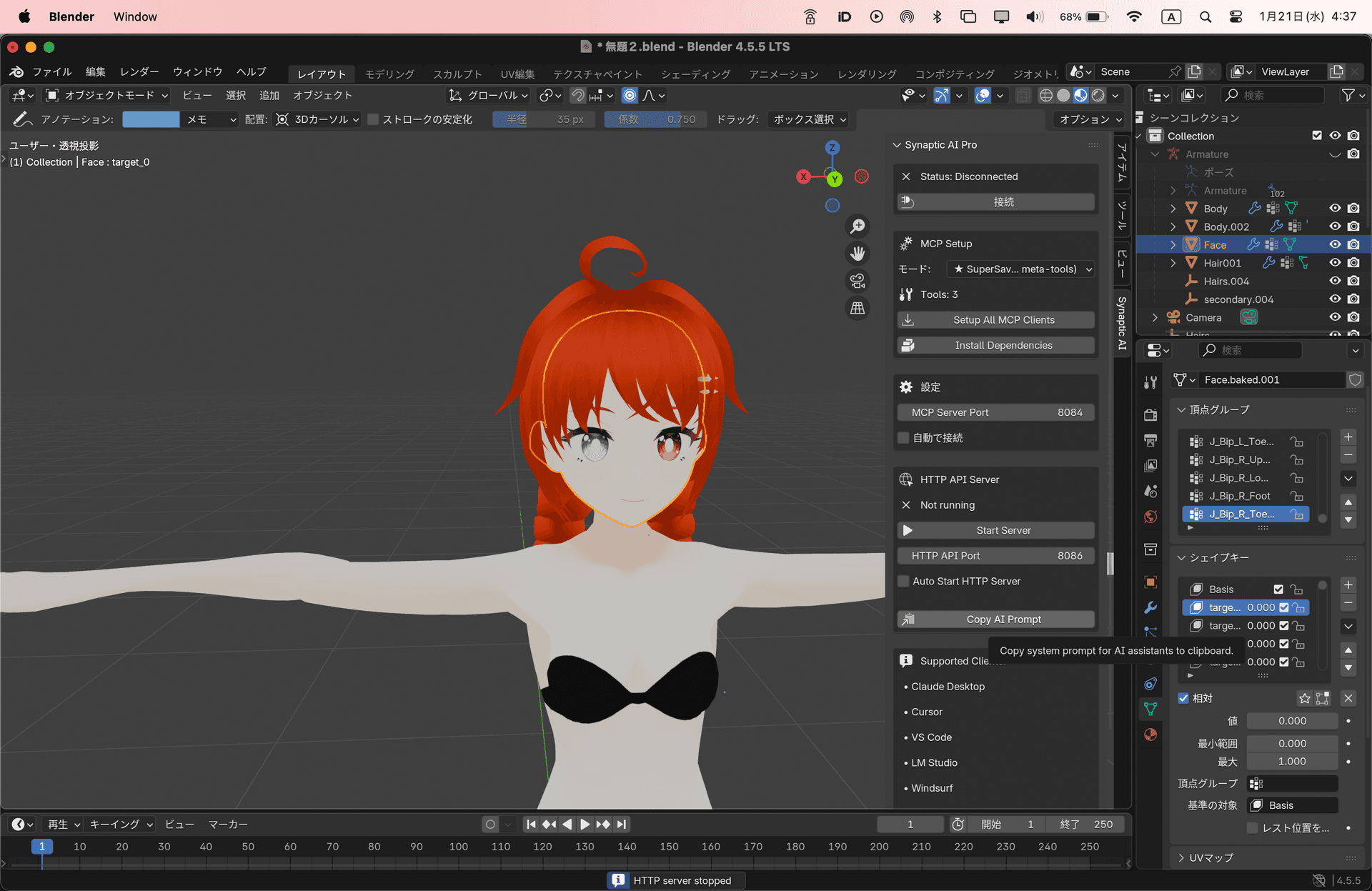
Copy Prompt
Click the 'Copy Prompt' button to copy the system prompt
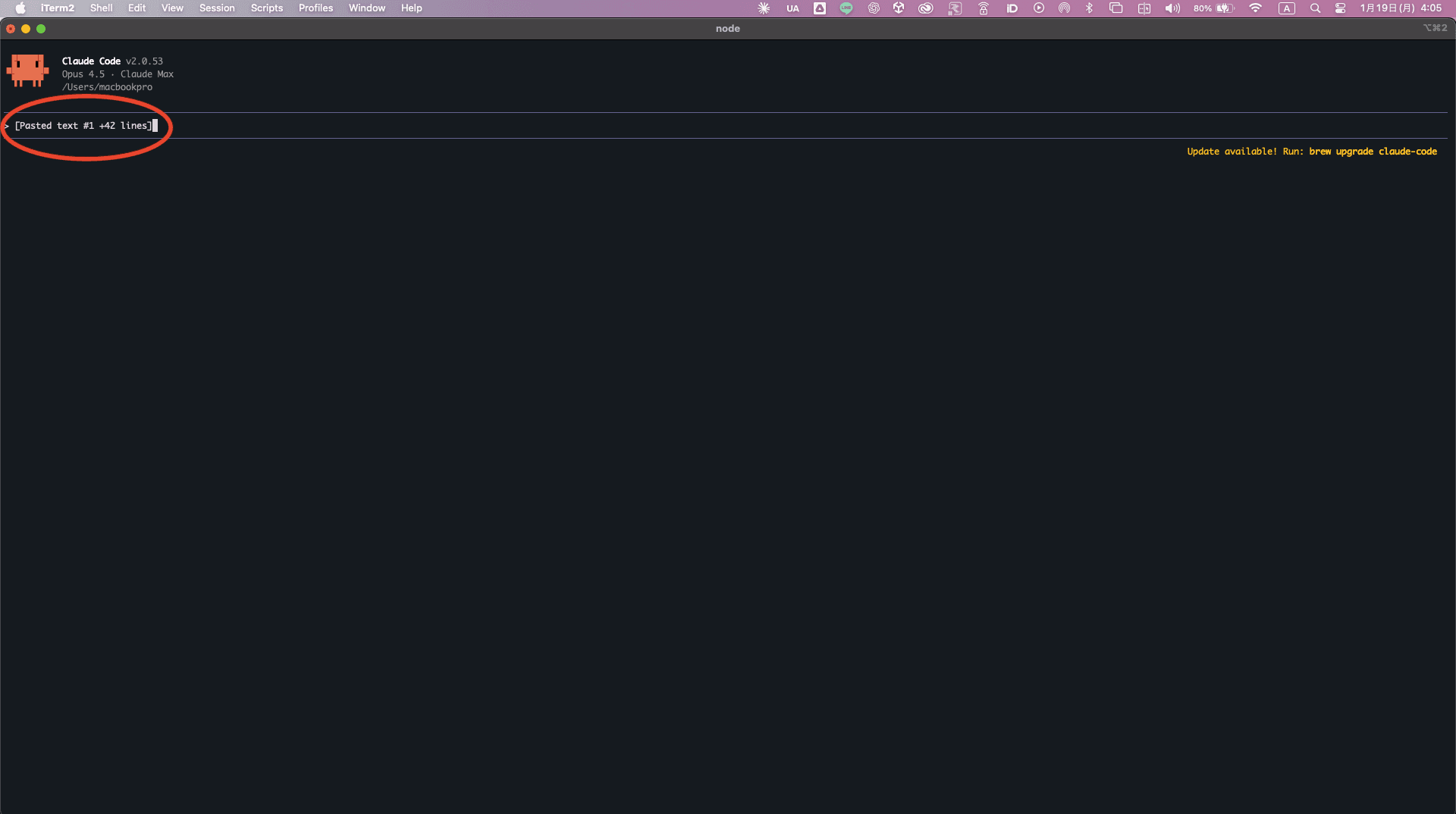
Paste to CLI
Paste the copied prompt into your CLI and execute
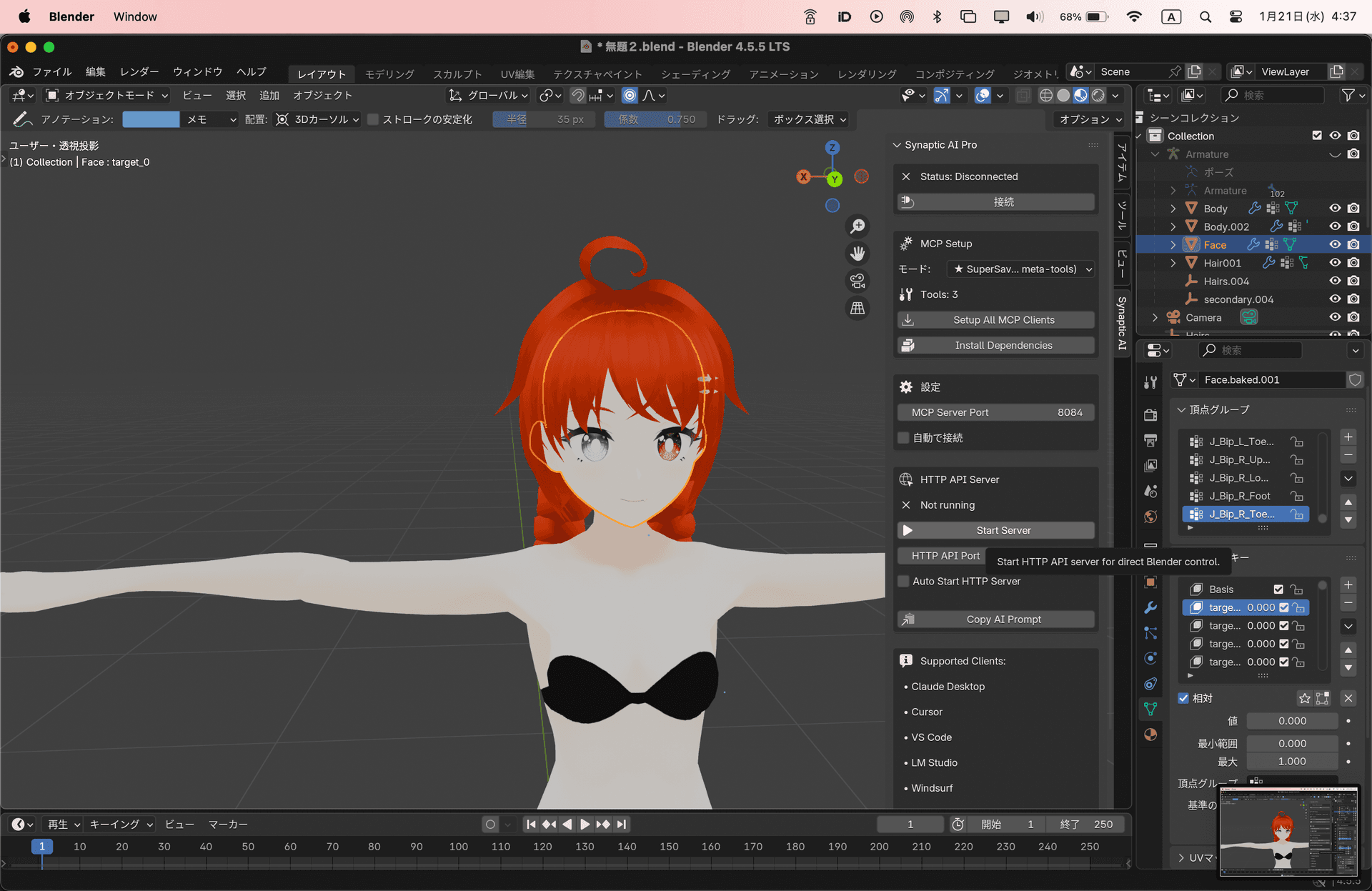
Start HTTP Server
Click the 'Start HTTP Server' button in the Blender panel
Setup Complete!
You can now control Blender with natural language from your CLI.
Key Point
Pasting the prompt first lets the AI understand Blender operations. After that, you can give instructions in natural language.
Try these:
Conversation Examples
Troubleshooting
Cannot connect to HTTP server
Make sure 'Start HTTP Server' has been clicked in the Blender panel. Also check if port 5001 is not being used by another application.
AI doesn't control Blender
Make sure the system prompt was copied correctly. You need to paste the prompt first before sending requests.
Operations don't take effect
Make sure Blender is in focus and responding. Try clicking in the Blender window.