Blender Setup Guide
Installation and setup for Synaptic AI Pro for Blender
Requirements
Before you begin, make sure you have the following installed:
- •Blender 3.6+ - Blender 3.6 or higher required
- •Node.js 18.0+ - Required for MCP server (download from nodejs.org)
- •Claude Desktop / VS Code / Cursor
Install Node.js
Skip if already installedNode.js is required to run the Synaptic MCP server.
Check if installed:
node -vIf you see a version number, you're good. If you see 'command not found', you need to install it.
Installation Steps
- 1.Download LTS version from nodejs.org
- 2.Run the installer (default settings are fine)
- 3.Restart your terminal after installation
Setup Steps
Complete in 7 steps
Step 1: Open Preferences
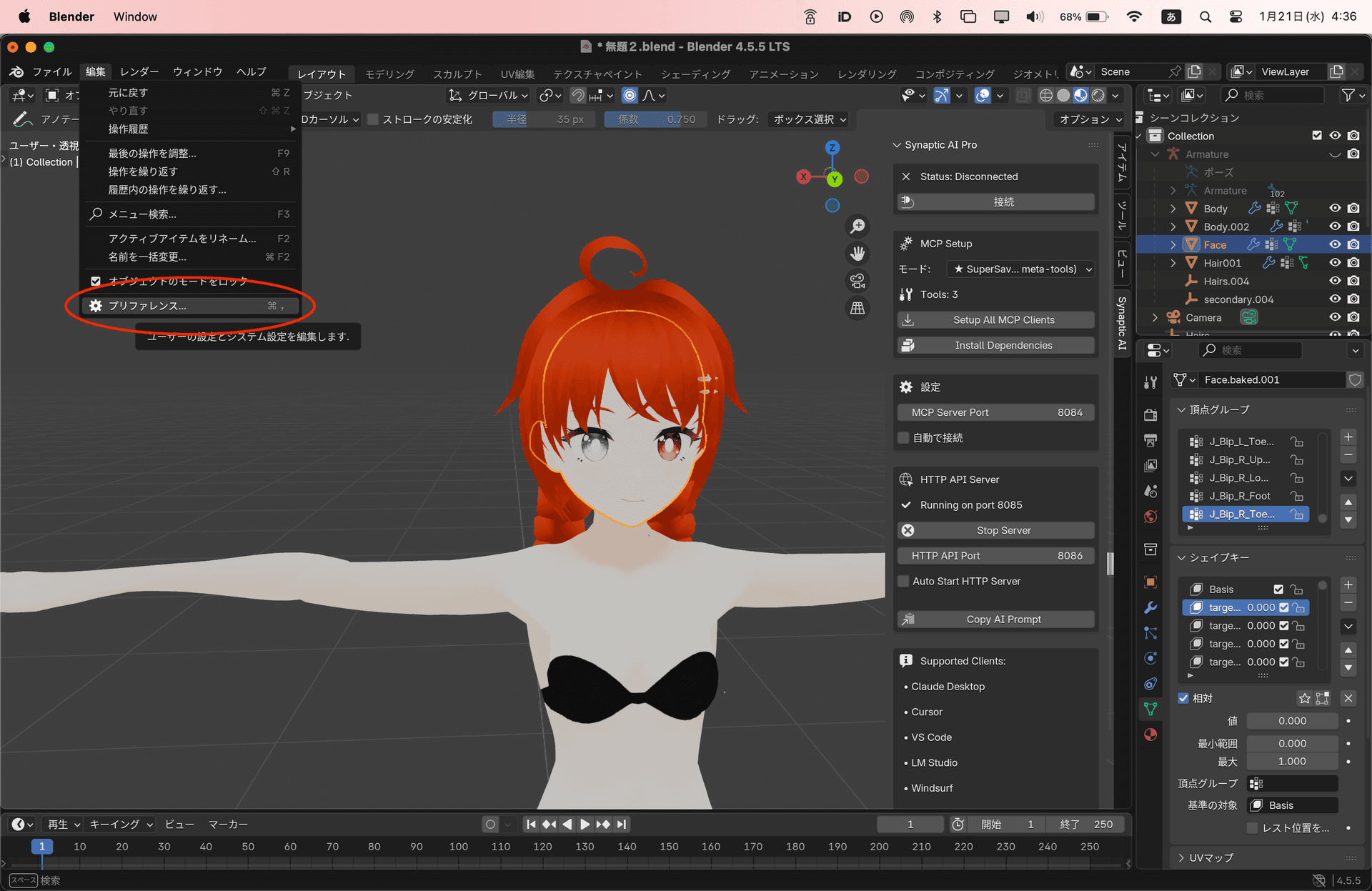
Go to Edit menu and select Preferences
Step 2: Select Add-ons
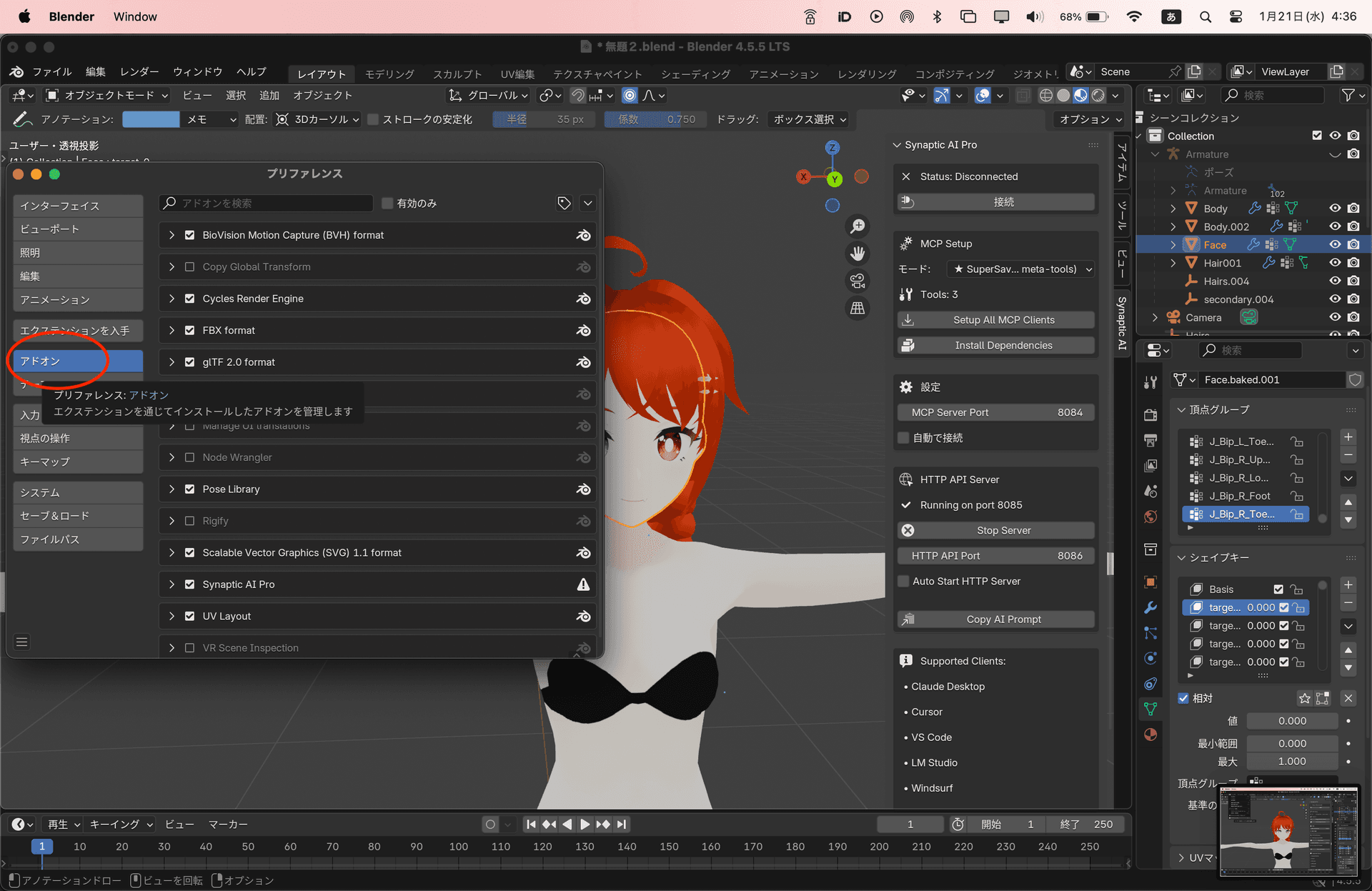
Click on Add-ons in the left sidebar
Step 3: Install from Disk
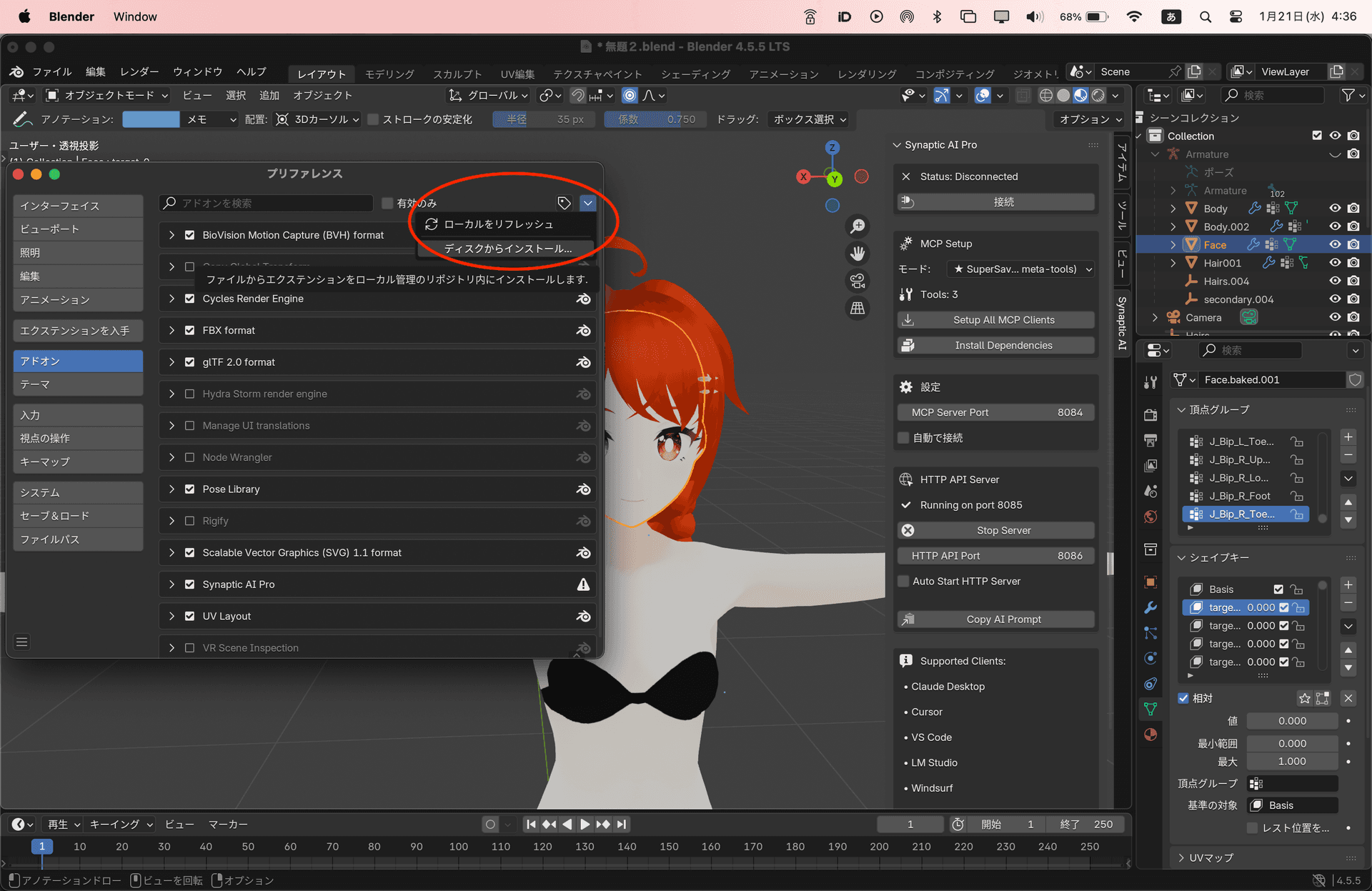
Click the dropdown in the top right and select 'Install from Disk', then choose the downloaded zip file
Step 4: Open Side Panel
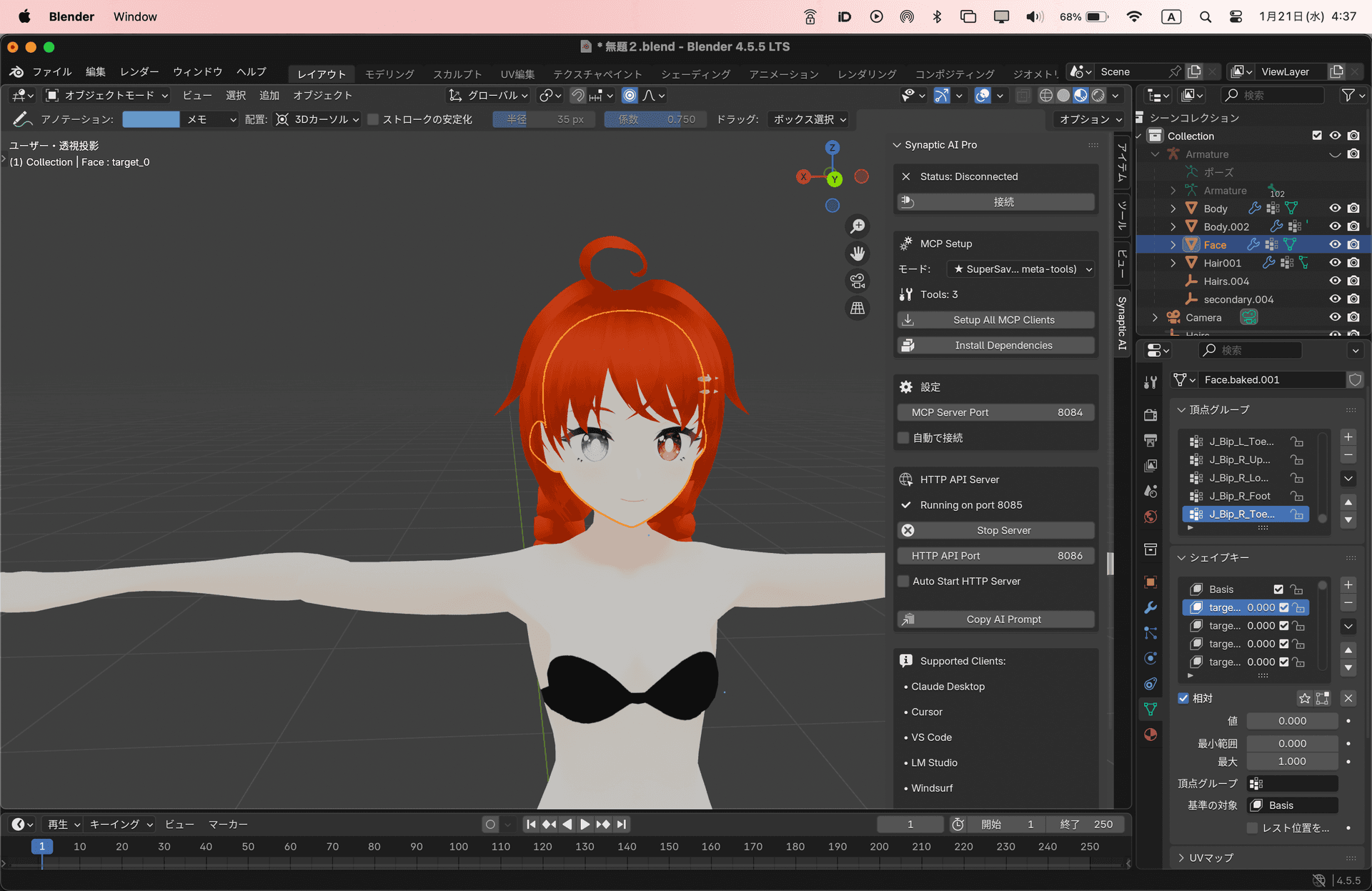
In the 3D viewport, press the key to show the side panel and select the 'Synaptic AI' tab
Press N keyStep 5: Setup MCP Clients
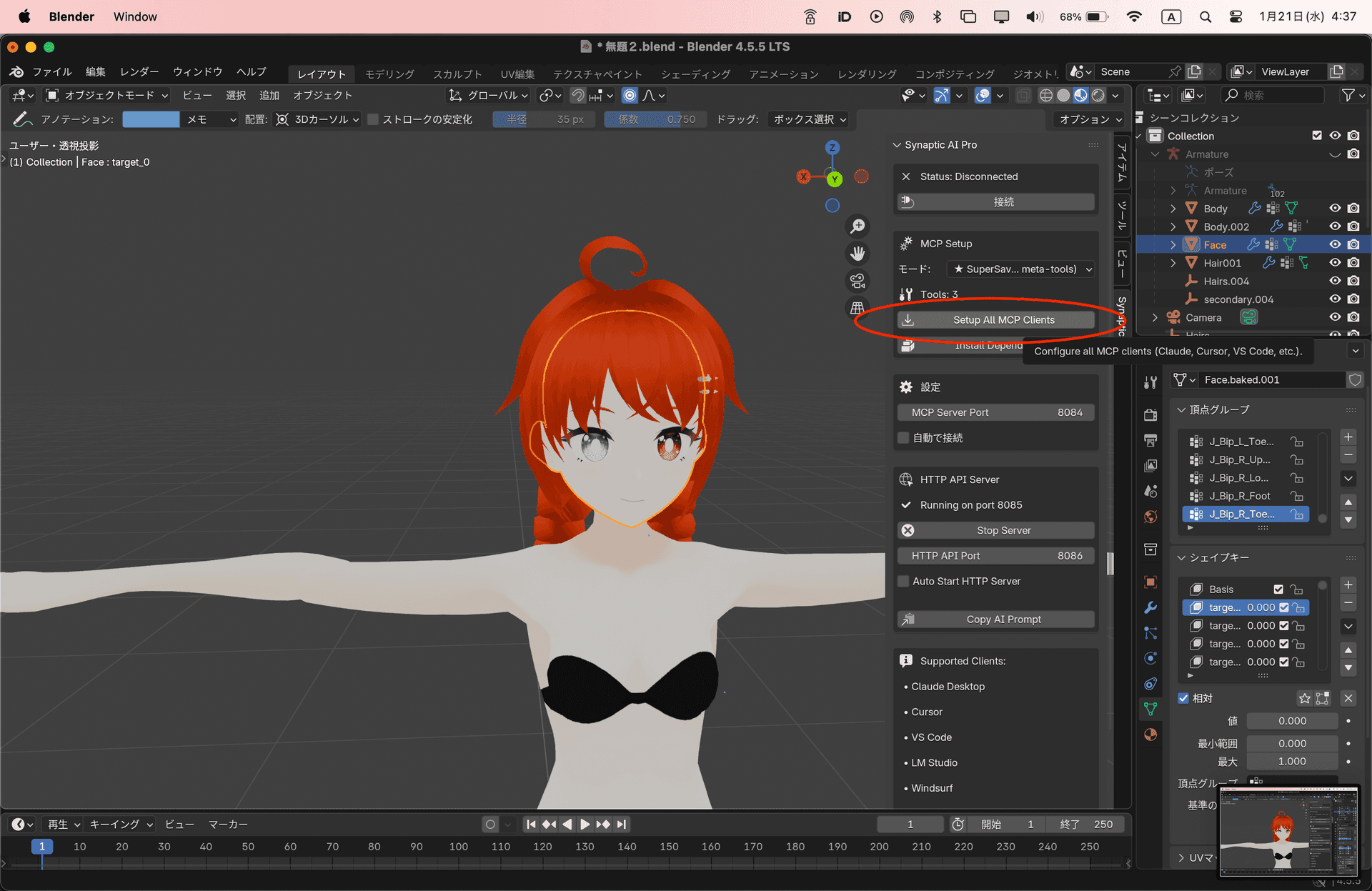
Click 'Setup All MCP Clients' button to automatically configure all AI tools
Step 6: Launch AI App
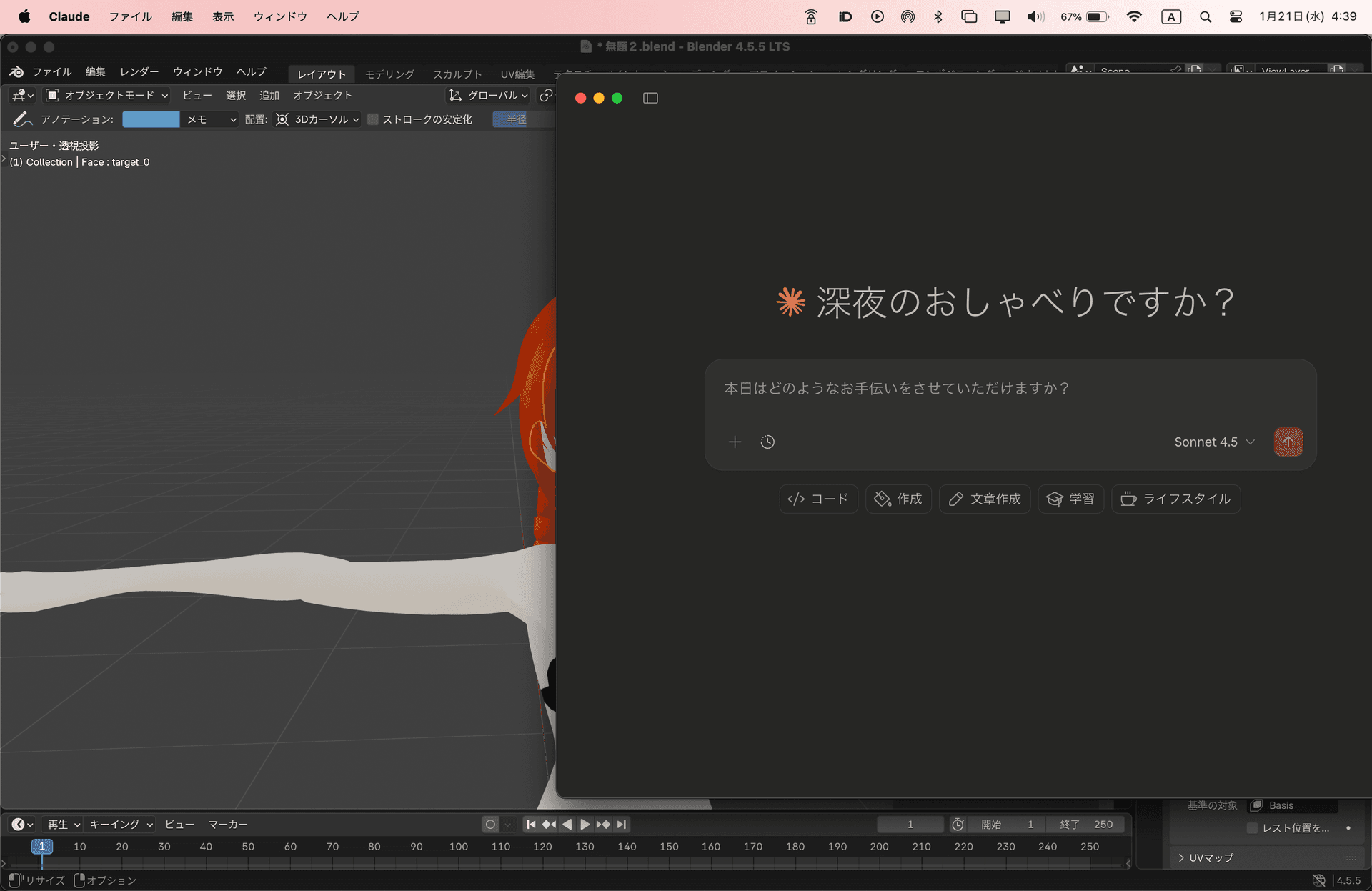
Launch or restart your AI application (Claude Desktop, VS Code, or Cursor)
Step 7: Connect
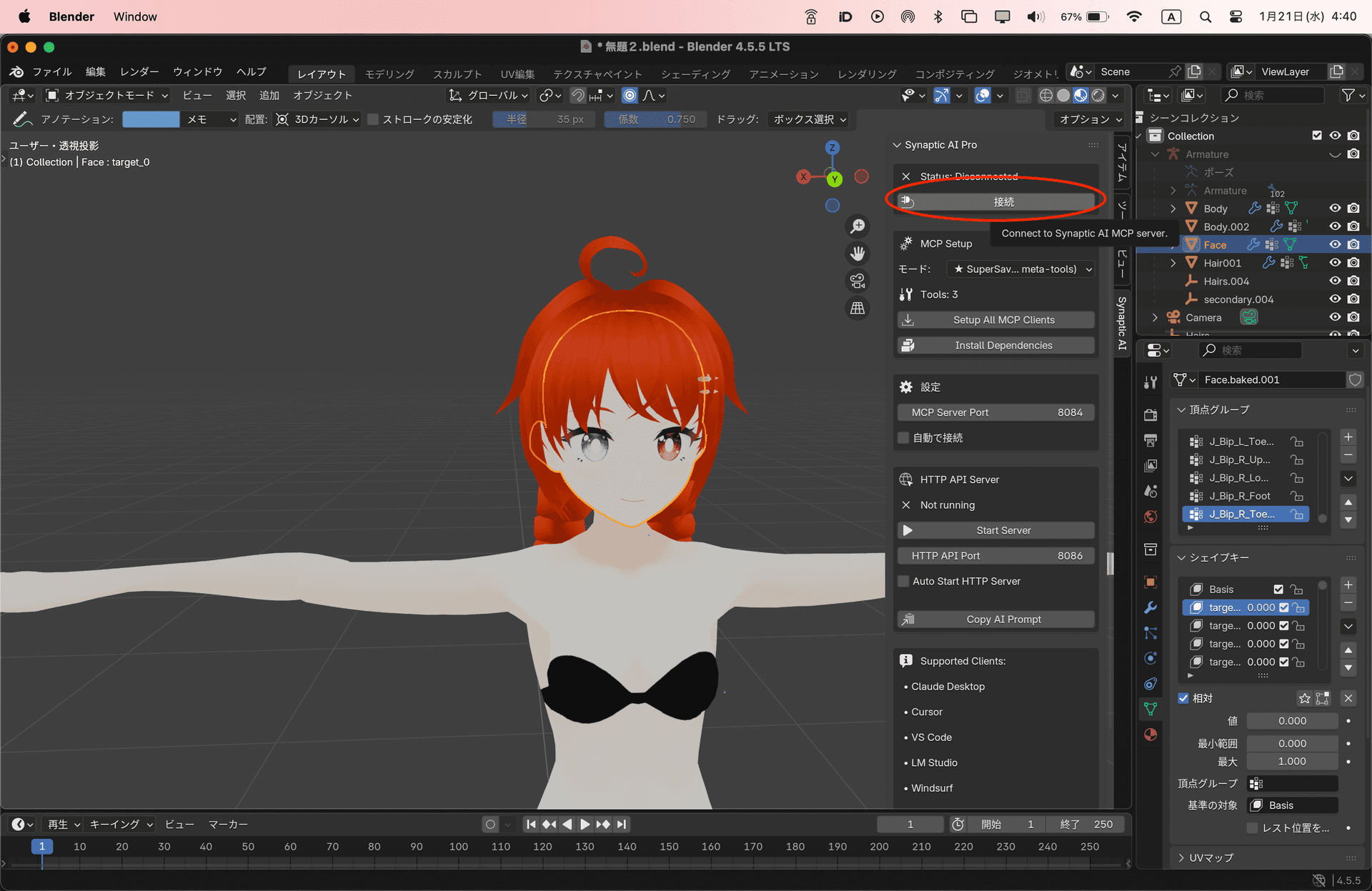
Click the 'Connect' button to connect Blender with the MCP server
Setup Complete!
You can now control Blender with natural language from your AI. Try saying 'Create a cube' to test.
Test Your Setup
Try these commands to verify the connection:
- •
"Create a cube" - •
"Make the selected object red" - •
"Position the camera at the front"
Troubleshooting
Add-on not showing
Restart Blender and check if the add-on is enabled. Go to Preferences → Add-ons and search for 'Synaptic' to verify it's checked.
Cannot connect
Verify Node.js is installed. Run 'node -v' in terminal to check if it shows a version number.
AI doesn't recognize Blender
Completely quit and restart your AI application. A restart may be required for MCP server settings to take effect.
Support
If you're still having issues, feel free to reach out.