Setup Guide
Configure Synaptic AI Pro with one-touch setup or manual configuration
Requirements
Before you begin, make sure you have the following installed:
- •Node.js 18.0+ - Node.js 18.0+ required to run the MCP server (download from nodejs.org)
- •Unity 2020.3 or later
- •Claude Desktop / VS Code / Cursor
Import UnityPackage
Import the purchased UnityPackage file into Unity.
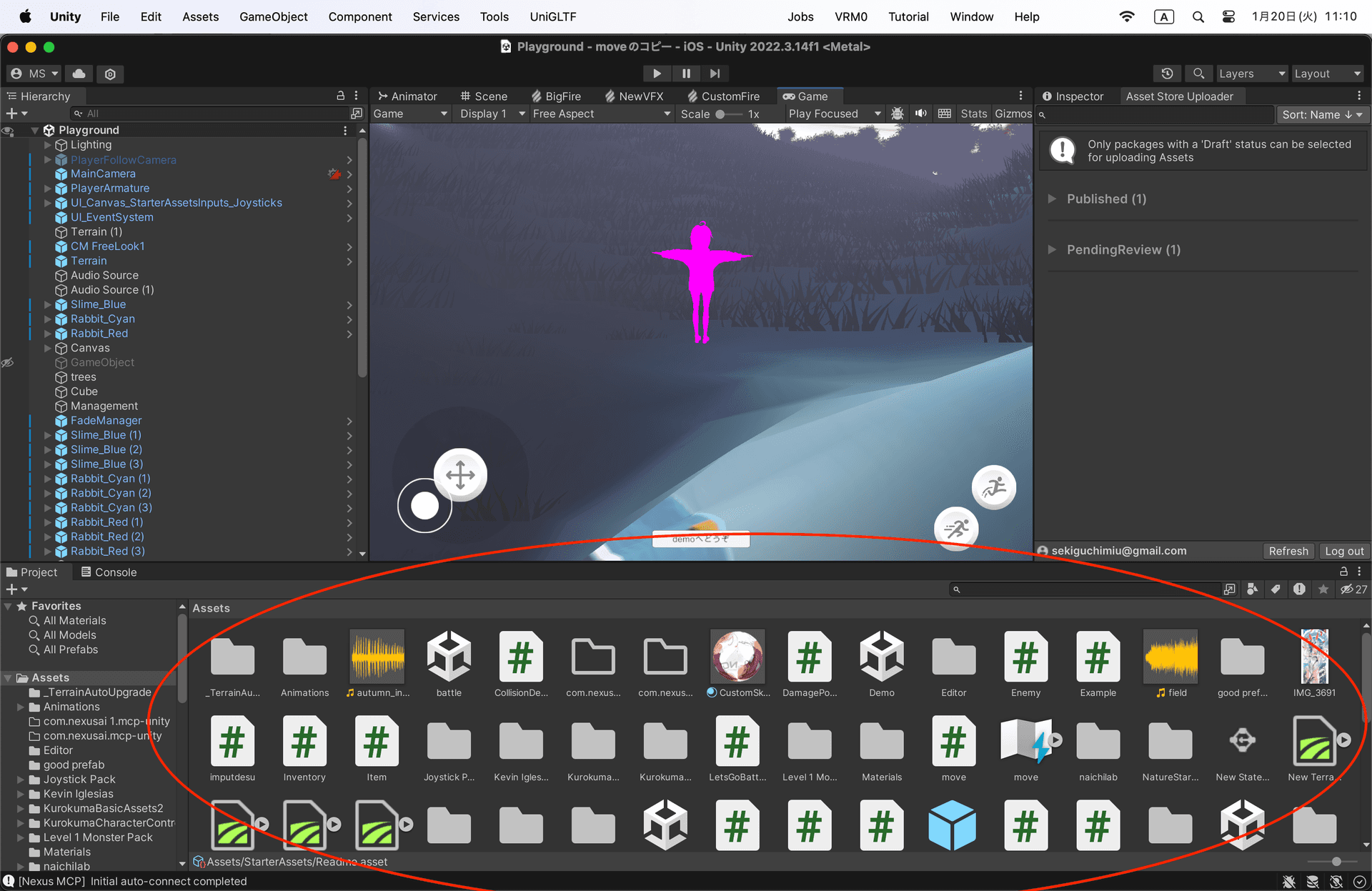
- 1.Open your Unity project
- 2.Drag and drop the UnityPackage file into the Assets folder
- 3.Click 'Import' when the import dialog appears
setupGuide.importPackage.macWarning.title
setupGuide.importPackage.macWarning.description
setupGuide.importPackage.macWarning.solution
Install Node.js
Skip if already installedNode.js is required to run the Synaptic MCP server. It's a JavaScript runtime that anyone can use - just install and you're ready.
Check if installed:
node -vIf a version number appears (e.g., v20.10.0), you're good. If you see "command not found", installation is required.
Installation steps
- 1.Download the LTS version from nodejs.org
- 2.Run the installer (default settings are fine, just click Next)
- 3.After installation, close and reopen your terminal
Recommended: One-Touch Setup
v1.0.3+ includes automatic configuration for Claude Desktop, Cursor, and VS Code. Manual setup is available below if needed.
ChatGPT / Codex CLI
Beginner GuideStep-by-step setup instructions for ChatGPT users
One-Touch Setup (Recommended)
Automatic configuration for all AI tools in one click
Video guide for setup steps
Click to expand
Click to expand
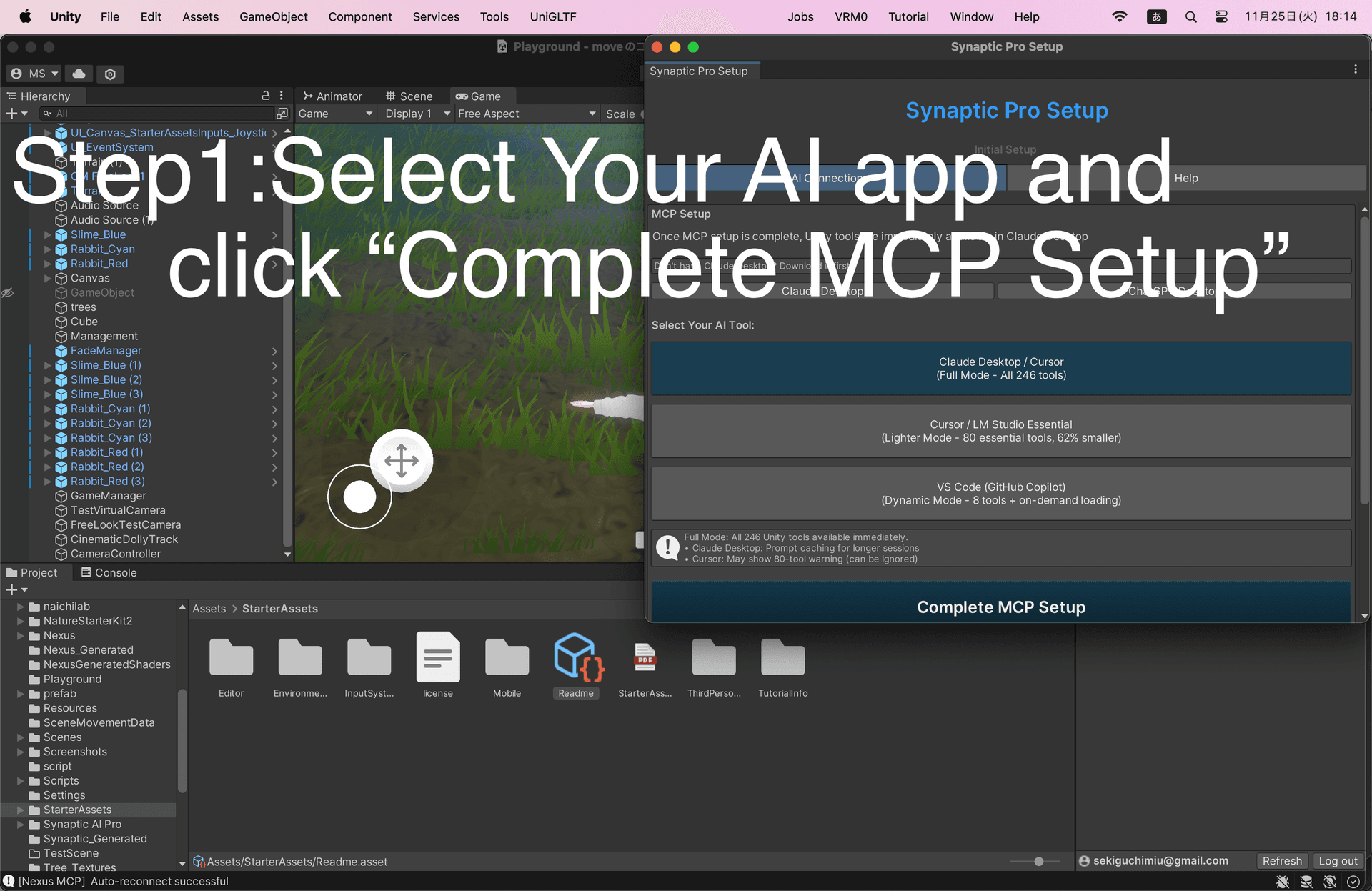
Step 1: Step 1: Open Setup Window
Unity → Tools → Synaptic Pro → Synaptic SetupStep 2: Step 2: Select AI Tool and Click 'Complete MCP Setup'
Select the AI tool you want to use
This will automatically configure MCP for all detected AI tools
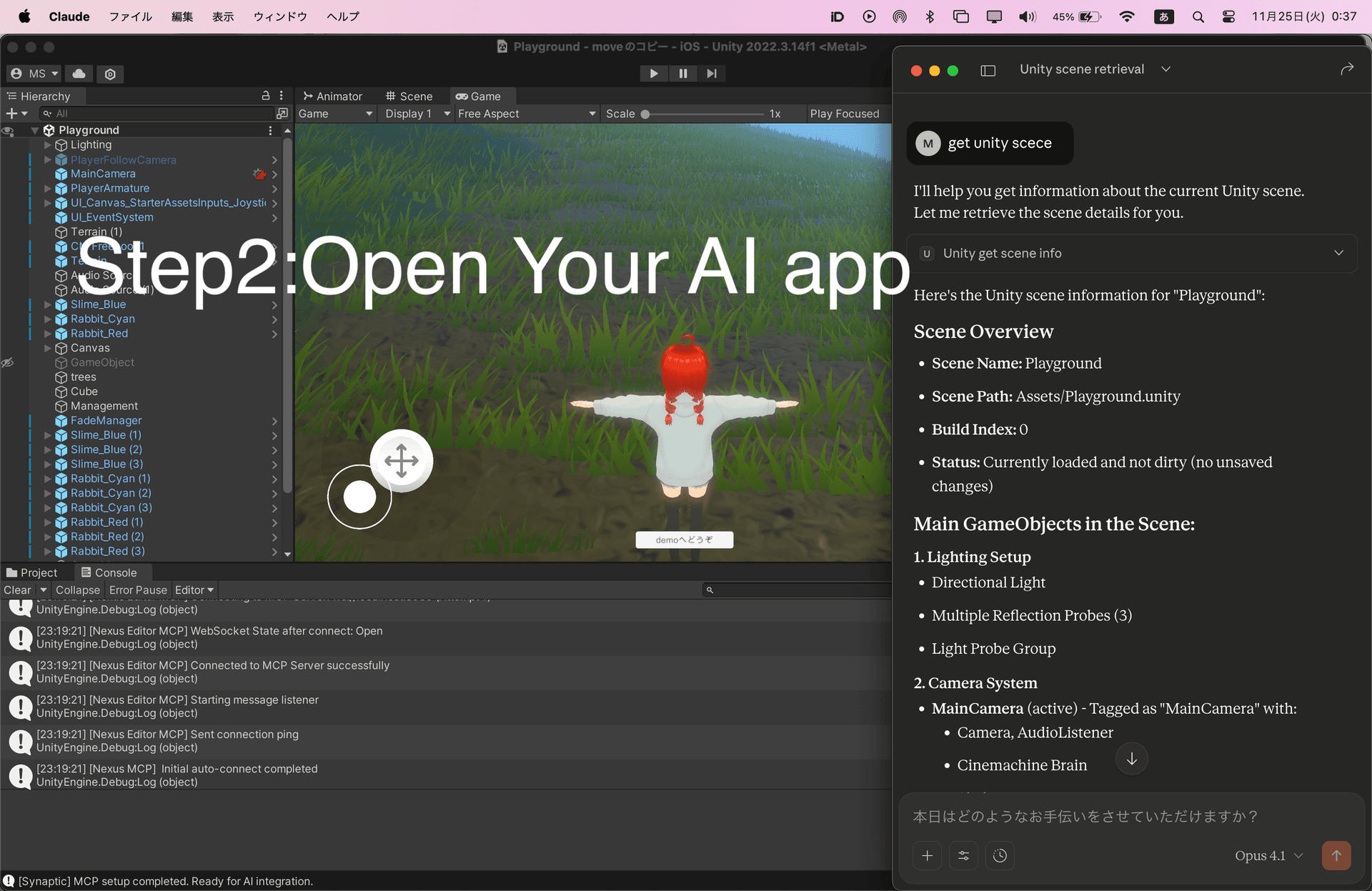
Step 3: Step 3: Launch/Restart AI App
Launch or restart your AI app (Claude Desktop / VS Code / Cursor)
Automatically Configured:
- Claude Desktop
- Cursor (~/.cursor/mcp.json)
- VS Code (.vscode/mcp.json)
Smart Merge: Existing MCP servers are preserved. Only unity-synaptic is added/updated.
Note: Restart/Reload your AI tool after setup to activate Unity MCP
Additional Step for VS Code Users
VS Code requires manual server start after one-touch setup:
- 1.Complete the one-touch setup above (Complete MCP Setup button)
- 2.Open your Unity project folder in VS Code
- 3.Click the MCP icon in the left sidebar (second from bottom)
- 4.Find 'unity-synaptic' in the MCP servers list
- 5.Click the settings icon and select 'Start Server'
💡 Tip: VS Code does not automatically start MCP servers. You need to manually start the server each time you open the project.
Manual Setup (Advanced)
If you prefer to configure manually or need project-specific setup:
Claude Code (VS Code)
1. Open MCP Configuration
Press the keyboard shortcut to open the command palette and search for MCP configuration:
Cmd/Ctrl + Shift + P → "MCP: Open User Configuration"2. Add Configuration (User Level)
Add this configuration for global access across all projects:
{
  "mcpServers": {
    "unity-synaptic": {
      "command": "node",
      "args": [
        "/FULL/PATH/TO/YOUR/Unity_Project/Assets/Synaptic AI Pro/MCPServer/index.js"
      ]
    }
  }
}
3. Alternative: Workspace Configuration
Or create .vscode/mcp.json in your project root for project-specific setup:
{
  "mcpServers": {
    "unity-synaptic": {
      "command": "node",
      "args": [
        "${workspaceFolder}/Assets/Synaptic AI Pro/MCPServer/index.js"
      ]
    }
  }
}
4. Reload VS Code
Cmd/Ctrl + Shift + P → "Reload Window"Cursor
1. Create Configuration File
Edit or create the MCP configuration file:
~/.cursor/mcp.json2. Add Configuration
Add the following configuration:
{
  "mcpServers": {
    "unity-synaptic": {
      "command": "node",
      "args": [
        "/FULL/PATH/TO/YOUR/Unity_Project/Assets/Synaptic AI Pro/MCPServer/index.js"
      ]
    }
  }
}
3. Reload MCP Servers
Settings → MCP Servers → ReloadPath Examples
macOS:
/Users/yourname/UnityProjects/MyGame/Assets/Synaptic AI Pro/MCPServer/index.jsWindows:
C:\Users\yourname\UnityProjects\MyGame\Assets\Synaptic AI Pro\MCPServer\index.jsWorkspace Variable (works anywhere):
${workspaceFolder}/Assets/Synaptic AI Pro/MCPServer/index.jsImportant: Use the full absolute path, not relative paths.
Test Your Setup
Try these commands to verify the connection:
- • "List all GameObjects in the Unity scene"
- • "Create a red cube at position (0, 5, 0)"
Troubleshooting
Node.js Not Installed
Check if Node.js is installed by running this command in your terminal:
node --version- • If you see 'command not found', download Node.js from nodejs.org
- • After installing, restart your computer
- • Try the setup again after Node.js is installed
Not working?
- • Reload your IDE
- • Check Output panel for errors
- • Make sure Unity is running first
- • Double-check the path is correct
Command not found: node?
- • Install Node.js from nodejs.org
- • Restart IDE after installing
Need Help?
If you have any questions or run into issues, feel free to reach out. Also, if you're enjoying Synaptic AI Pro, we'd love if you could leave a review on the Asset Store!
Leave a Review